March 26, 2023: FreqEZ Band Decoder v2.2.0 released to general availability
Click HERE to read the announcement and instructions for existing users.
I. FreqEZ v2.2.0 Windows Console:
Standard Windows setup program:
Download and unzip this ZIP archive. Then run the setup executable:
- FreqEZ Windows Console: FreqEZ WinConsole_v2.2.0.zip
2. FreqEZ v2.2.0 Raspberry Pi Controller – Two methods:
Burn microSD Disk Method (RECOMMENDED):
A complete FreqEZ Controller software installation can be created using the Raspberry Pi organization’s Imager program ( https://www.raspberrypi.com/software/ ) to burn this image file to a microSD card. The resulting microSD will contain both the Raspbian operating system and pre-configured FreqEZ RPi software. When finished, just insert the microSD card into the RPI and apply power. Step-by-step instructions can be found below and in the “Raspberry Pi Controller – Preparing the microSD Card” section of the documentation by clicking on Help in the v2.2.0 Windows Console or opening the on-line Help file in >Downloads >Version 2.2.0 “FreqEZhelp.dbf”.
FreqEZ Installation Guide
- Raspberry Pi Imager – for creating the Raspbian operating system image to the microSD card. Follow instructions below
- Launch Raspberry Pi Imager
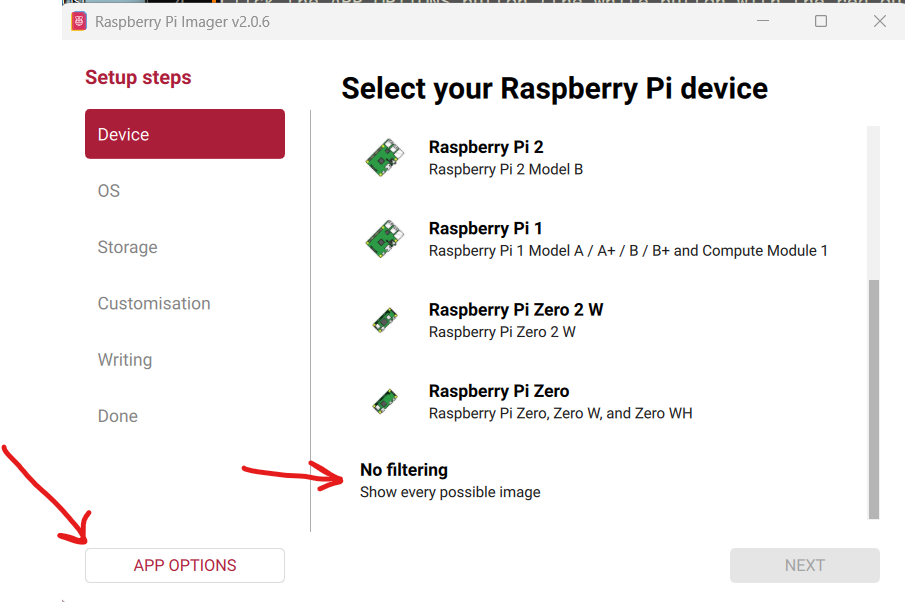
- Click the APP OPTIONS button at bottom of the window (the white button with the red outline)
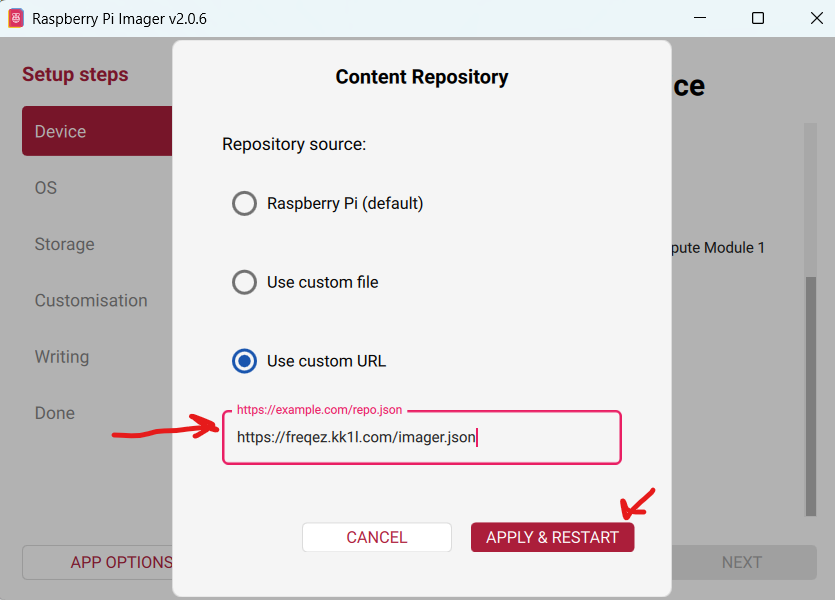
- Under Content Repository choose Use custom URL
- enter: https://freqez.kk1l.com/imager.json
- press APPLY & RESTART
- Choose the Device Setup step (should be already selected on left)
- Scroll to the very bottom and double-click No filtering
(or select and press NEXT)
- Scroll to the very bottom and double-click No filtering
- Double-click FreqEZ Trixie Headless or Desktop at the top of the list
(or select and press NEXT) - Choose the storage device (microSD) to write
- For Customisation steps enter a hostname, locale, username, password, WiFi SSID, passphrase
- hostname of ezcontroller-1 is not a bad choice
- Leave “Capital city” as is…it does not matter
- username = ez, password=freqez is not a bad choice. Don’t choose “pi”
- ENABLE SSH!
- Proceed to write the image to your SD card
- The IMG file will be automatically downloaded and burnt to the micro SD card
This loads a “headless” version of 64bit Debian “Trixie”…Raspbian v13.3.
The first boot will take a few minutes. Each subsequent boot will be much quicker.
Manual File Copy Method (ALTERNATE):
The files in this FreqEZ RPi Controller ZIP archive can be downloaded and manually copied to specific locations within the Raspberry Pi file structure. Step-by-step instructions can be found in the “APPENDIX: Alternative Method for Preparing the microSD Card” section of the documentation by clicking on Help in the v2.2.0 Windows Console or opening the on-line Help file in >Downloads >Version 2.2.0 “FreqEZhelp.dbf”.
- FreqEZ Raspberry Pi Controller FOR BULLSEYE or earlier!!: FreqEZ2 Raspberry Pi Controller_v220
- FreqEZ Raspberry Pi ControllerFOR BOOKWORM or later!!:FreqEZ2 Raspberry Pi Controller_v230
FreqEZ v2.2.0 Help PDF file
- FreqEZ Documentation / Help file: FreqEZhelp.pdf