Home / Shop
FreqEZ HAT16 Antenna Switch Controller by K8UT
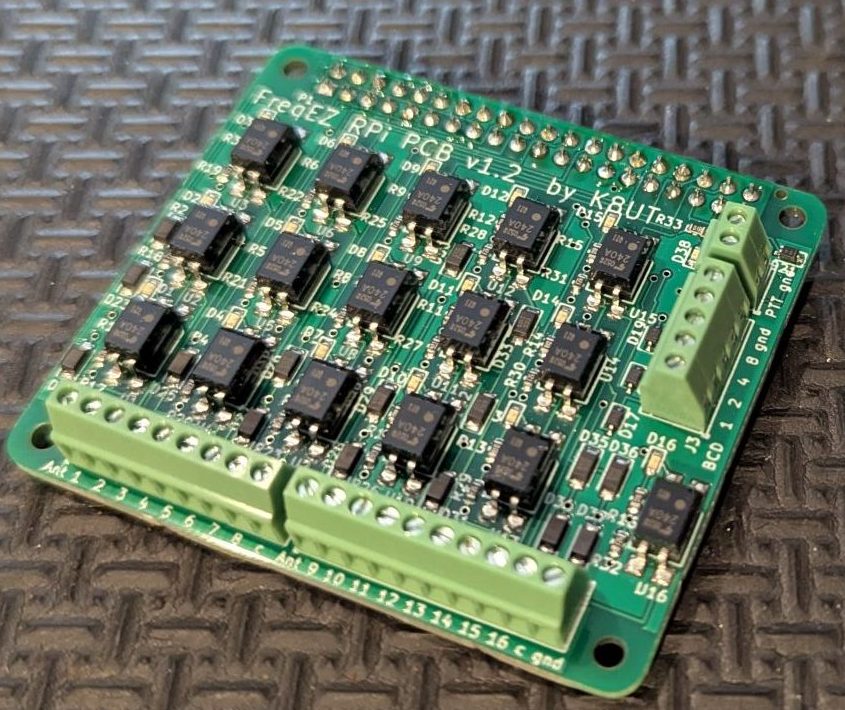
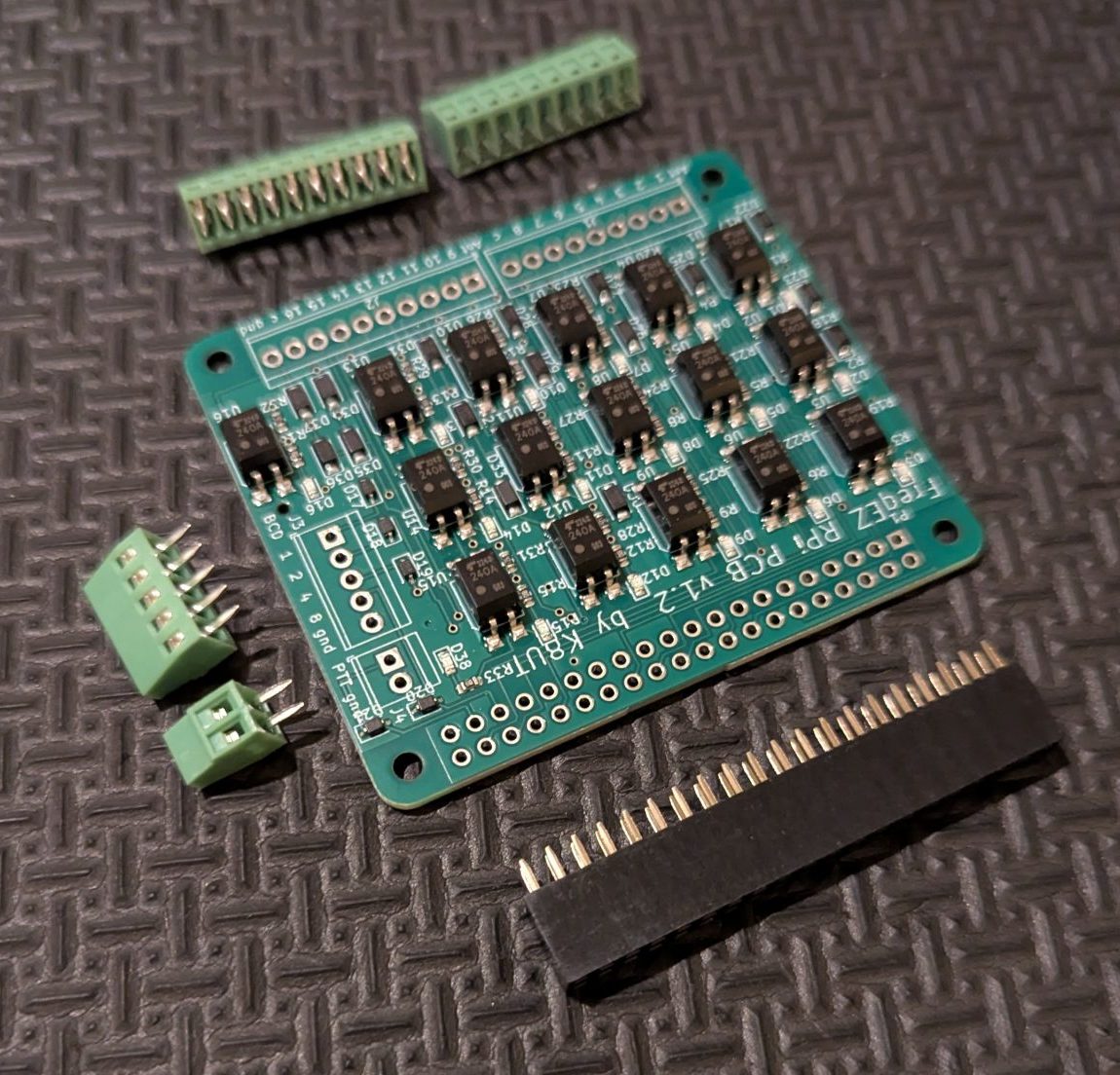


- Description
- Specifications
- Customer Reviews (0)
FreqEZ HAT16 Antenna Switch Controller by K8UT
The K8UT FreqEZ Band Decoder is a combination hardware/software project that provides highly configurable Band Decoding and Remote Antenna selection. For amateurs who use N1MM+, Logger32, UcxLog, Log4OM, or DXLab logging software, FreqEZ will leverage those programs’ UDP packets for antenna switching. For other amateurs, FreqEZ can connect to the BCD band outputs available from most transceivers. Without available UDP packet or BCD band information, FreqEZ can also be used as a sophisticated manual antenna switch.
Available "assembly required" for a $5 discount. You solder the provided connectors on yourself for a cost savings and a sense of accomplishment!
FreqEZ HAT16 Antenna Switch Controller by K8UT
- Automatic antenna selection from network-based UDP packets or hard-wired BCD inputs
- In N1MM+ – use the antenna numbers from the Configurer Antenna table
- Supports the N1MM+ Keyboard Shortcut for multiple antennas per band by toggling <alt>+F9
- In Logger 32, DXLab, Log4OM, UcxLog, TR4Win or N1MM+ – use the Tx radio frequency from the UDP RadioInfo packet
- Manual antenna selection with simple mouse clicks in the Windows FreqEZ Console
- Hard-wired method, for logging programs that do not support UDP broadcasts
- One of these units will drive all the ports of either the 2x6 or 2x8 switch boards
- An RPi is required for each HAT
- The FreqEZ software is free
- Inexpensive, off-the-shelf, readily available hardware
- No DIP switches, diodes, solder-bridges. All configuration is via software settings
- Single Op Profiles in the Setup window for SO1V, SO2V or SO2R configurations
- Separate antenna configurations for Radio1 versus Radio2 when operating SO2V or SO2R
- The FreqEZ Console and the FreqEZ Controller communicate via WiFi or wired Ethernet connections
- The Raspberry Pi FreqEZ Controller operates “headless” – can be located anywhere
- Each Raspberry Pi FreqEZ Controller contains 8 (HAT8 card) or 16 (HAT16) outputs
- The FreqEZ HAT Controller provides bi-directional opto-MOSFET solid-state devices that can each handle 20 volts AC/DC at 500 milliamperes
- The FreqEZ DIY Controller provides either 8 or 16 “dry contacts” that sink (ground) or source (+12 vdc) in any combination from a variety of available relay boards
Related Products
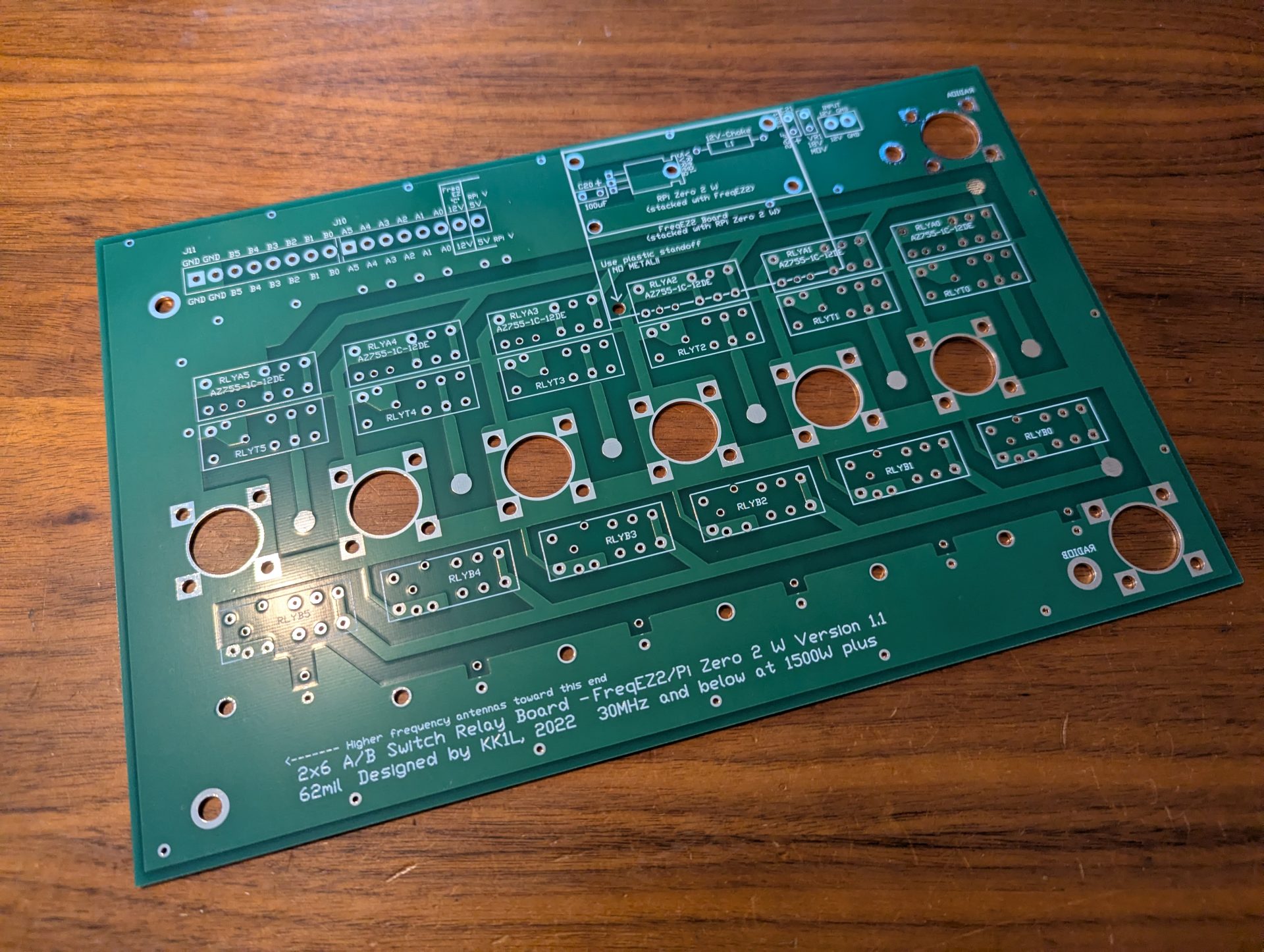
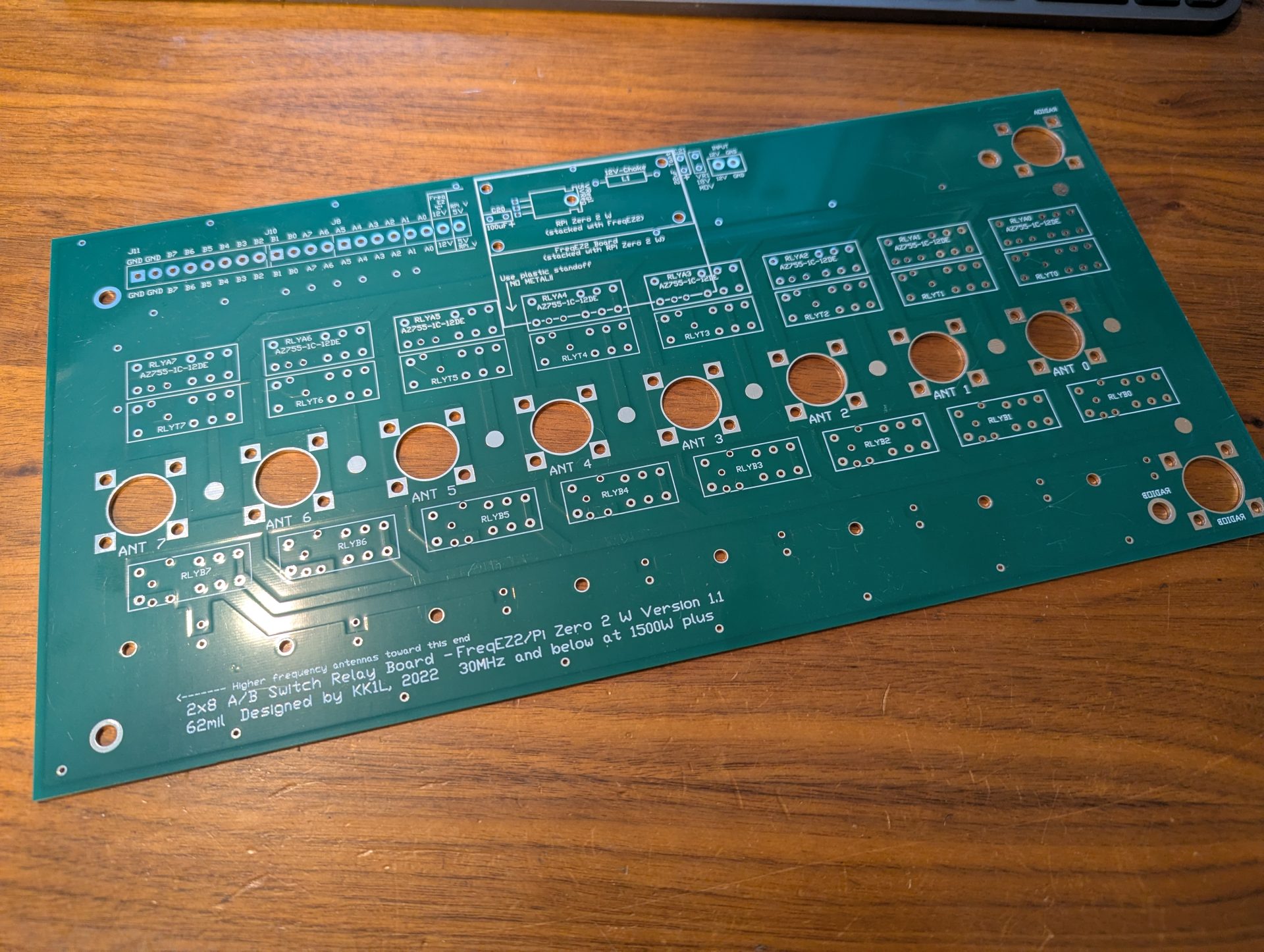
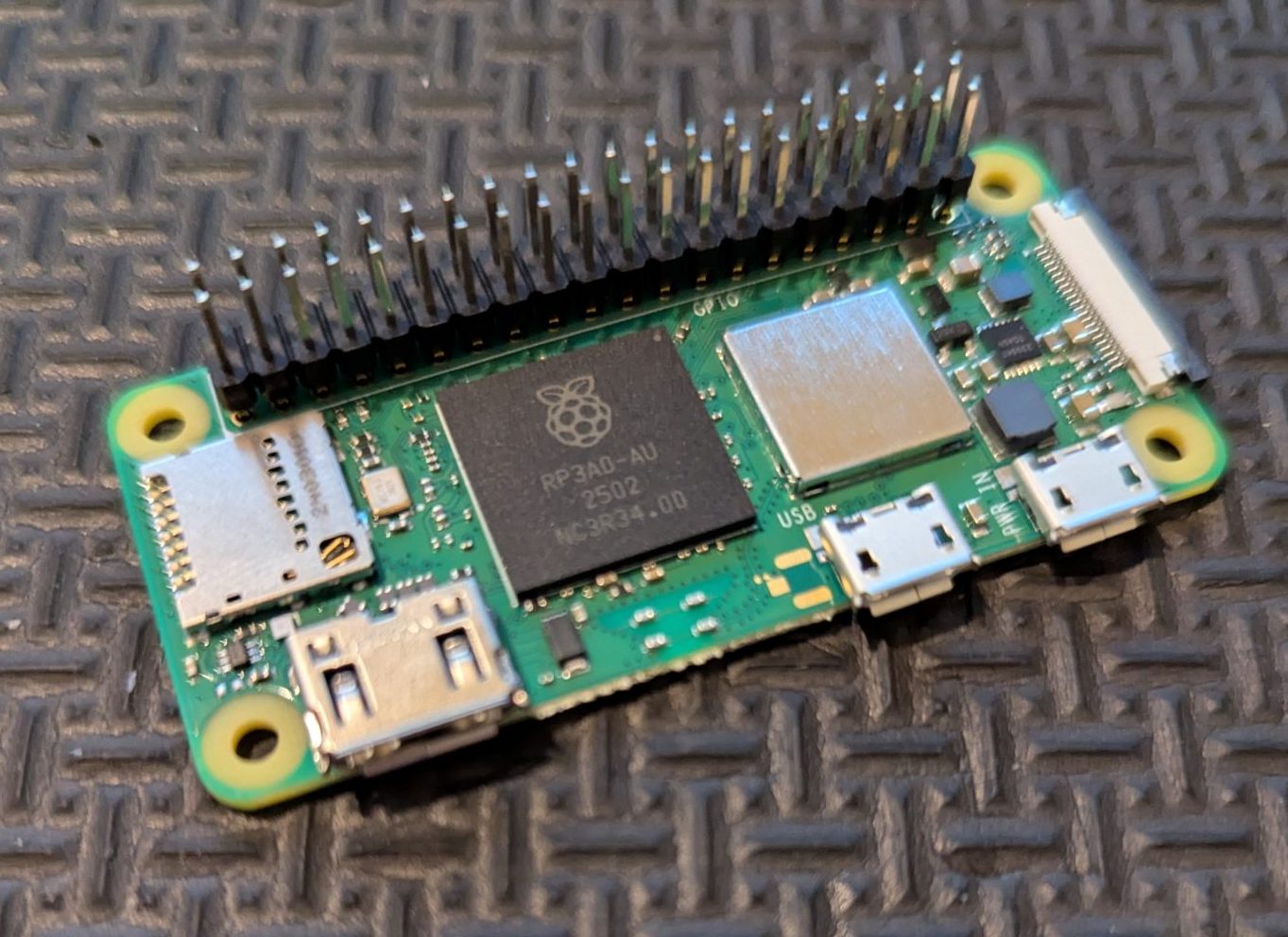
As a reminder you will need other components to complete your project. Below are some links to help you. I do my best to get your order to you quickly and update the site of any persistent delay (on vacation or business travel for example). I will respond to your order email with any issues. Don’t hesitate to reach out with questions Contact Me.
FreqEZ v2.2.0 Windows Console – software to be installed on each computer accessing the FreqEZ
Standard Windows setup program:
Download and unzip this ZIP archive. Then run the setup executable:
FreqEZ Windows Console: FreqEZ WinConsole_v2.2.0.zip
FreqEZ v2.2.0 Raspberry Pi Controller – software to be installed on the Raspberry Pi connected to the FreqEZ
Burn microSD Disk Method (RECOMMENDED):
- Raspberry Pi Imager – for creating the Raspbian operating system image to the microSD card. Follow instructions below
- Launch Raspberry Pi Imager
- Click the APP OPTIONS button at bottom of the window (the white button with the red outline)
- Under Content Repository choose Use custom URL
- enter: https://freqez.kk1l.com/imager.json
- press APPLY & RESTART
- Choose the Device Setup step (should be already selected on left)
- Scroll to the very bottom and double-click No filtering
(or select and press NEXT)
- Scroll to the very bottom and double-click No filtering
- Double-click FreqEZ Trixie Headless or Desktop at the top of the list
(or select and press NEXT) - Choose the storage device (microSD) to write
- For Customisation steps enter a hostname, locale, username, password, WiFi SSID, passphrase
- hostname of ezcontroller-1 is not a bad choice
- Leave “Capital city” as is…it does not matter
- username = ez, password=freqez is not a bad choice. Don’t choose “pi”
- ENABLE SSH!
- Proceed to write the image to your SD card
- The IMG file will be automatically downloaded and burnt to the micro SD card
Manual File Copy Method (ALTERNATE for “experts”):
- The files in this FreqEZ RPi Controller ZIP archive can be downloaded and manually copied to specific locations within the Raspberry Pi file structure.
- Step-by-step instructions can be found in the “APPENDIX: Alternative Method for Preparing the microSD Card” section of the documentation by clicking on Help in the v2.2.0 Windows Console or opening the on-line Help file FreqEZhelp.pdf.
- FreqEZ Raspberry Pi Controller FOR BULLSEYE or earlier!!: FreqEZ_RPiController_v2.2.0.zip
- FreqEZ Raspberry Pi Controller FOR BOOKWORM or later!!: FreqEZ_RPiController_v2.3.0.zip
- Note there is a “freqezrpi” executable for either 32 bit or 64 bit. You must choose the correct version.
FreqEZ v2.2.0 Help PDF file
FreqEZ Documentation / Help file: FreqEZhelp.pdf